Mac privacy guide

How to Hide a Folder on Mac — All Methods Including Terminal

Hiding a folder can clean up your Desktop or keep casual viewers from noticing a file, but hiding is not the same as protecting. This guide shows the built-in Mac methods first, then explains when encryption or a dedicated folder-security tool is the safer choice.

Editorial TeamUpdated August 17, 202618 min readmacOS 13+ guidance
Quick answer

To hide a folder on a Mac, the simplest reliable method is Terminal: run chflags hidden followed by the folder path, then relaunch Finder if the change is not visible immediately. To see hidden items in Finder, press Command + Shift + . Hiding only changes visibility; for private or sensitive files, use an encrypted disk image, FileVault, or an encrypted locker instead.

Start here

How to Hide a Folder on Mac — All Methods

macOS has several ways to make folders less visible, but each solves a different problem. A hidden flag is good for reducing clutter. A dot-prefixed folder is useful for technical files. An encrypted disk image protects selected data with a password. FileVault protects the startup disk as a whole.

If the goal is privacy from another person who can use your Mac account, do not rely on invisibility alone. Hidden folders are easy to reveal once someone knows where to look. For meaningful privacy, combine a separate user account with encryption or an encrypted locker.

Can you hide a folder on Mac?

Yes. macOS can mark folders as hidden without deleting or encrypting them. You can reverse the change at any time, and the folder remains accessible by path even while Finder does not show it normally.

Concept illustration of a folder hidden from normal view for Mac privacy
Visibility only

Hidden folder

Stops casual browsingGood
Stops a determined userNo
Password protection

Encrypted disk image

Selected files onlyYes
Built into macOSYes
Whole-Mac protection

FileVault

Protects startup diskYes
Hides individual foldersNo
Before you start

Requirements and macOS compatibility

For the built-in methods, you only need Finder, Terminal, or Disk Utility. The commands in this guide are intended for folders you own. Make a backup before changing names, moving app-managed folders, or creating encrypted containers.

Know the folder path
Dragging a folder into Terminal can insert its exact path.
Keep a backup
Especially before renaming folders used by apps.
Choose the right goal
Hide for tidiness, encrypt for confidentiality.
Native macOS style interface illustrating private file protection on a Mac
13+

Ventura, Sonoma, Sequoia, and newer releases

The Finder, Terminal, Disk Utility, and FileVault approaches described here apply across recent macOS releases. Folder Lock for Mac currently lists macOS 13 or later as its minimum requirement. If you are on an older Mac, use the built-in options and verify third-party compatibility before installing anything.

Methods

Best Free Methods for How to Hide a Folder on Mac

Start with the least invasive method that matches your goal. None of the first two options encrypts your files, so they should be treated as visibility controls, not as security boundaries.

Easy · 1 minute

Use Terminal to Hide a Folder on Mac

01

The chflags command changes Finder visibility without renaming the folder. It is quick, reversible, and does not alter the files inside.

Security: lowCost: freeBest for: clutter and casual privacy
  1. Open Terminal.
    Use Spotlight or open Terminal from the Utilities folder.
  2. Type the hide command.
    Enter chflags hidden followed by a space.
  3. Insert the folder path.
    Drag the folder from Finder into Terminal, then press Return.
  4. Refresh Finder if needed.
    Close and reopen the Finder window, or relaunch Finder if the item remains visible.
chflags hidden "/Users/yourname/Documents/Private Folder"

Works well when

You want a normal folder to disappear from ordinary Finder views without moving its contents.

Not enough when

Another person knows how to reveal hidden files or can access the same account with sufficient permissions.

Moderate · 2 minutes

Hide a folder by giving it a dot-prefixed name

02

Unix-style systems conventionally treat names beginning with a period as hidden. Renaming Projects to .Projects can hide it from normal Finder views, but changing a folder name may break app references, aliases, scripts, or sync rules.

mv "/Users/yourname/Documents/Projects" "/Users/yourname/Documents/.Projects"

Works well when

The folder is yours, is not managed by another app, and you are comfortable referring to it by path.

Avoid when

The folder is used by software, a backup workflow, a project file, or a cloud-sync process that expects its original name.

Advanced · 10–20 minutes

Use a free third-party encrypted volume when you need portability

03

VeraCrypt is a well-known free option for creating encrypted volumes on multiple desktop platforms. On Mac, it is more technical than Disk Utility and may require additional system permissions or components depending on the release, so it is best suited to experienced users who specifically need a cross-platform encrypted container.

Security: highCost: freeBest for: technical cross-platform workflows

Works well when

You need an encrypted container that can be used in a mixed-computer environment and you are comfortable maintaining third-party security software.

Not ideal when

You only need a private folder on one Mac. Disk Utility is simpler, built in, and has fewer moving parts.

Moderate · 5 minutes

Use an encrypted disk image for a private folder

04

Disk Utility can turn a folder into an encrypted disk image. This is the strongest built-in choice when you want password protection for a specific collection of files rather than your whole startup disk.

  1. Open Disk Utility.
    Choose File, New Image, then Image from Folder.
  2. Select the folder.
    Pick the folder you want to protect and choose where to save the image.
  3. Choose encryption.
    Select an encryption option and set a strong password you can recover.
  4. Choose an image format.
    Use a writable format if you expect to keep adding or editing files.
  5. Verify before removing originals.
    Mount the image, confirm the files open correctly, eject it, then reopen it with the password.

Apple documents the “Image from Folder” workflow in Disk Utility. Keep the password separate from the encrypted image and do not delete source files until you have verified your protected copy.

Read Apple’s Disk Utility instructions →

Easy · system-wide

Use FileVault when the real risk is loss or theft

05

FileVault is not a folder-hiding feature. It protects the startup disk by tying access to authorized credentials. That makes it valuable if your concern is a lost or stolen Mac, but it does not stop someone already signed in to your user account from browsing files you can access.

  1. Open System Settings.
    Go to Privacy & Security, then FileVault.
  2. Turn on FileVault.
    Follow the recovery prompts carefully.
  3. Protect the recovery method.
    Store your recovery key or account recovery option somewhere you can access if your login password is lost.

Read Apple’s FileVault guidance →

Reveal and reverse

Find Hidden Files and Folders on Mac

Before you hide anything, know how to get it back. Finder has a quick visibility toggle, while Terminal can remove the hidden flag from a specific item.

Command + Shift + .

This Finder shortcut toggles hidden items on and off. Hidden items typically appear visually muted while the mode is enabled.

chflags nohidden "/Users/yourname/Documents/Private Folder"

Use the exact path of the folder you own. The command removes the hidden flag without changing the folder’s contents.

killall Finder

Finder relaunches automatically. Use this only if a visibility change is not reflected right away.

Show Hidden Folders on Mac permanently?

For routine work, the Finder keyboard toggle is safer than changing global preferences because it is easy to reverse. If you regularly work with hidden developer files, use the toggle when needed and switch it off afterward to reduce accidental edits.

Desktop privacy

Hide Files on Mac Desktop

If your goal is a cleaner Desktop, move the files into a normal folder first, then hide that single folder. This is easier to reverse and less error-prone than hiding many items separately. If the files are confidential, move them into an encrypted disk image or encrypted locker rather than relying on invisibility.

How to hide folder on desktop Mac without losing it

Create a clearly named folder such as “Archive”, confirm that everything you want to keep is inside it, then use the chflags hidden method. Record the path in a password manager or another secure note so you do not confuse “hidden” with “missing” later.

Hide photos on Mac

For photos stored inside the Photos app, use the app’s own Hidden album rather than moving library-managed files in Finder. For loose image files in Finder, the same folder methods in this guide apply.

The tool we recommend for stronger folder privacy

When hiding is not enough, use an encrypted locker

For Mac users who need more than Finder-level invisibility, Folder Lock adds encrypted local and cloud-based lockers. The Mac version supports a local Desktop locker plus protected workflows tied to Dropbox, Google Drive, and OneDrive. We still prefer Terminal for harmless visual cleanup and Disk Utility when someone wants a free, built-in encrypted container.

macOS 13 or later AES-256 encryption Local + 3 cloud locker types Free and Pro tiers

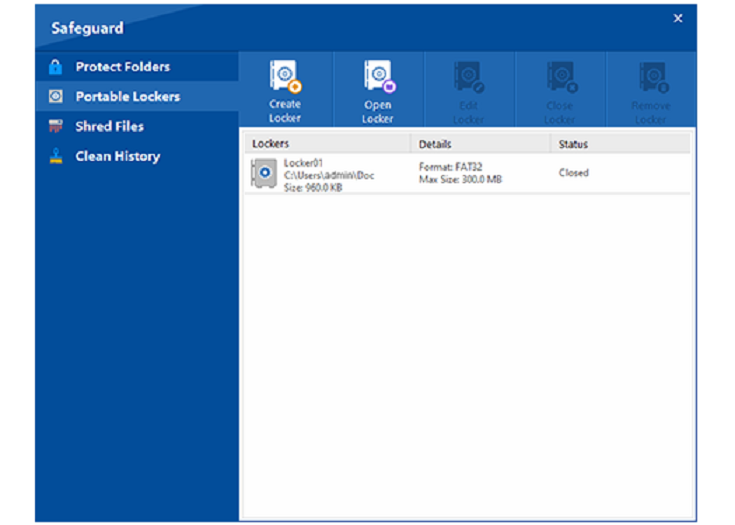
Important limits: Folder Lock uses its own locker workflow rather than converting every existing Finder folder into a protected folder in place. The Mac release history also states that the Safeguard capability found in the Windows edition is not part of the Mac version. Since April 2026, the vendor has directed Mac users to the Mac App Store build for future updates.

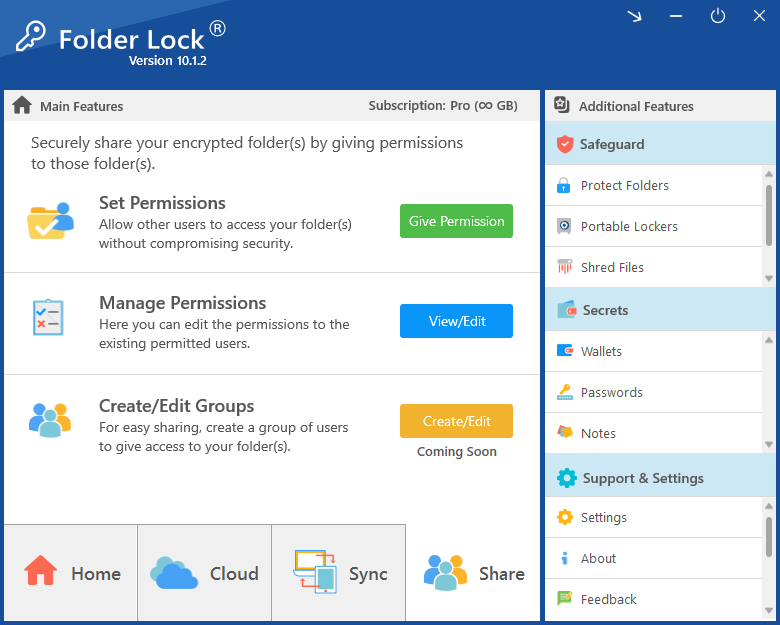
Folder Lock for Mac home screen showing encrypted file and locker controls
Choose by situation

Which Mac folder privacy method fits your use case?

A

Clean Desktop

Use the hidden flag when the goal is visual tidiness and the files are not sensitive.

B

Shared household Mac

Use separate macOS user accounts first, then add encryption for files that must remain confidential.

C

Client or financial files

Prefer an encrypted disk image or encrypted locker so the data is protected even if the item is discovered.

D

Lost-device risk

Turn on FileVault. Folder hiding does not address offline access to a stolen machine.

What the recommended tool adds

Folder security features worth understanding

Folder Lock 10 feature banner presenting encrypted storage and privacy capabilities

Encrypted storage

Best for confidentiality
Local lockerThe Desktop locker gives Mac users a dedicated encrypted place for files that should remain on the computer rather than simply disappearing from Finder.
AES-256 protectionThe supplied product material specifies AES-256 for locker encryption, which makes this a materially different control from hiding a folder or changing Finder visibility.
Folder Lock 10 Desktop Locker screen for locally encrypted files on Mac

Cloud and devices

Best for synced work
Three cloud locker optionsDropbox, Google Drive, and OneDrive can each be used as a protected locker destination, so encrypted content can participate in a normal sync workflow without relying only on the cloud account password.
Cross-device accessThe wider Folder Lock ecosystem includes desktop and mobile apps. The free plan is limited to two synchronized devices, while Pro raises that allowance to five.
Folder Lock 10 lockers screen showing encrypted local and cloud storage choices

Sharing and private data

Pro-focused extras
Controlled sharingPro adds a sharing workflow in which approved recipients can be granted access without everyone relying on the same locker password.
Secrets areaThe Mac release history describes protected storage for private information such as notes, passwords, and wallet-style records in addition to ordinary files.

Fit and limits

Check before choosing
Best forPeople who want a repeatable app-based locker workflow for local files or cloud-synced data and do not want to build encrypted disk images manually.
Not ideal forSomeone who only wants to remove an ordinary folder from view. Terminal is quicker for that, and the Mac edition does not include the Windows Safeguard feature.
At a glance

How to Hide a Folder on Mac vs Encryption — Key Differences

Visibility control

Hide a folder

  • DifficultyEasy
  • SecurityLow. Hidden items can be revealed.
  • CostFree
  • Best forDesktop cleanup and casual privacy.
  • LimitNo encryption or password barrier.
MethodDifficultySecurityCostBest forLimitations
Hidden flagEasyLowFreeVisibilityEasy to reveal
Dot-prefixed folderModerateLowFreeTechnical foldersRenaming can break references
Encrypted disk imageModerateHighFreeSelected private filesPassword management required
FileVaultEasyHigh for device lossFreeWhole startup diskDoes not isolate one folder inside a logged-in account
Folder Lock for MacEasy to moderateHigh for locker dataFree tier / paid ProApp-guided encrypted lockersSeparate locker workflow; Pro is paid
Step by step

How How to Hide a Folder on Mac Works — Step-by-Step

This tutorial uses Folder Lock only when the goal has moved from “make this folder invisible” to “protect these files with encryption.”

  1. Install the Mac edition.
    Use the Mac App Store listing linked from the official Folder Lock for Mac page.
  2. Create your account and protection credentials.
    Use a unique password and keep recovery information separate from the Mac.
  3. Create a Desktop Locker.
    Choose local encrypted storage when the files should stay on the Mac.
  4. Move sensitive files into the locker.
    Work with copies first until you have verified the new storage behaves as expected.
  5. Close and reopen the locker.
    Confirm the protected files are inaccessible outside the authorized workflow.
  6. Back up safely.
    If you use a cloud locker, verify sync and access on a second authorized device before relying on it.
Technical details

Why Folder Locking Matters for Privacy

macOS can mark an item as hidden while leaving it fully present on disk. Finder normally suppresses those items, but visibility can be toggled, so hidden status should never be treated as encryption.

.DS_Store files store Finder view metadata. Their leading period makes them hidden by convention. Do not delete or modify hidden system files simply because they appear after you enable hidden-file viewing.

Locking can mean many things: changing permissions, hiding an item, placing it in an app-controlled vault, or encrypting it. Encryption is the clearest security boundary because the contents are transformed so they cannot be read without the required cryptographic key.

Modern macOS limits what apps can do outside their approved permissions. Install security software only from a trusted distribution channel, review the permissions it requests, and avoid weakening System Integrity Protection simply to make an app work.

Cloud sync improves availability but adds another workflow to verify. Confirm that the protected form, not an unencrypted copy, is what gets synchronized, and test recovery from a second authorized device before depending on it.

The Pro tier includes a user-sharing capability. In practical terms, that is preferable to passing one master password around because access can be assigned to approved people instead of making every collaborator depend on the same secret.

Folder Lock 10 sharing permissions screen for managing authorized file access

The version history says the first Mac release brought most of the Folder Lock 10 feature set across from Windows but left out Safeguard. That difference matters if you are comparing product pages across operating systems: do not assume every Windows capability exists on Mac.

In the April 2, 2026 release notes, NewSoftwares shifted future Mac updates to the Mac App Store. Users coming from the older web-installed build were instructed to remove that app before installing the store version, while the notes indicated that existing encrypted data was intended to remain intact through the transition. Back up important locker data before any application migration.

Folder Lock 10 secure notes screen for protecting private notes and sensitive information
Mac security options
Mac encryption software illustration for comparing file and folder protection options

FileVault vs third-party tools — macOS security comparison

OptionProtects one folderProtects full startup diskRequires separate appBest fit
Terminal hidden flagVisibility onlyNoNoCleaning up Finder
Disk Utility encrypted imageYes, via containerNoNoFree folder-level encryption
FileVaultNo, not individuallyYesNoLost or stolen Mac
VeraCryptYes, via encrypted volumeCan protect separate volumesYesTechnical cross-platform users
Folder Lock for MacYes, via encrypted lockerNoYesApp-guided desktop and cloud lockers

We do not link to competing products here. For most readers, the practical choice is between the Mac’s built-in encrypted disk image, FileVault for whole-device protection, and a dedicated locker app when an app-guided workflow is preferred.

Free vs Pro

Folder Lock for Mac: what changes when you upgrade?

Folder Lock 10 product boxshot for encrypted file and folder security software

The free edition is useful for trying the locker model, but its storage and synchronization ceilings are deliberately small. Pro removes the listed locker-capacity limits, expands the number of synchronized devices, and adds sharing plus the Secrets area.

CapabilityFreeProWhat it means in practice
Desktop locker1 GBUnlimitedLocal encrypted storage is available in both tiers, but the free allowance is suited mainly to light use.
Dropbox locker1 GBUnlimitedBoth tiers can protect files in a Dropbox-linked locker; Pro removes the listed capacity ceiling.
Google Drive locker1 GBUnlimitedThe same free-versus-Pro storage distinction applies to Google Drive.
OneDrive locker1 GBUnlimitedOneDrive is also supported as an encrypted locker destination.
Synchronized devices25Pro is more suitable when the same protected data must be available across several personal devices.
Share with other usersNot includedIncludedSharing is a paid capability rather than part of the basic free workflow.
Secrets areaNot includedIncludedProtected notes, passwords, and similar private records sit outside the free feature set.
Desktop and mobile appsAvailableAvailableThe product family spans Mac, Windows, iOS, and Android, although this guide remains focused on the Mac workflow.
Is the free version enough?

For testing the interface or protecting a small set of files, it can be. If you expect multiple cloud lockers, several synchronized devices, shared access, or ongoing private-data storage, the Pro limits are more practical.

Pricing reference

Folder Lock Pricing: What You Get

The supplied NewSoftwares comparison lists a no-cost tier and a Pro price of $39.95. The research material does not state a billing interval for that figure, so this guide does not label it monthly, yearly, or lifetime. Since the Mac distribution moved to the App Store in April 2026, the final amount and purchase terms should be checked in the storefront before paying.

$0
Free tier

A meaningful trial, not an unrestricted plan

  • 1 GB in each listed locker type
  • Synchronization across up to two devices
  • Desktop and mobile app access within the product family
  • No sharing or Secrets feature in the supplied comparison
Download free version →
$39.95
Price shown in supplied product material

Built for larger and multi-device locker use

  • No listed storage ceiling for Desktop, Dropbox, Google Drive, or OneDrive lockers
  • Synchronization across up to five devices
  • Sharing with approved users
  • Secrets area for additional private information
View full version pricing →
Preparation

Folder Lock Best Practices for Home and Business

Shared computer privacy illustration showing personal files protected from other users

Organize sensitive files before adding any protection. Separate documents by retention need, remove duplicates, and avoid mixing irreplaceable originals with temporary exports. A smaller protected set is easier to back up and verify.

How to organize sensitive files before locking

  • Use plain, non-sensitive folder names that do not advertise the contents.
  • Keep an offline or separately encrypted backup of irreplaceable originals.
  • Record which tool protects which folder so future recovery is straightforward.
  • Test restore access before deleting unprotected working copies.

Shared Mac or business workstation

For multiple people using one Mac, start with separate macOS user accounts and least-privilege sharing. Add folder-level encryption for data that must remain confidential from other local users. Hiding alone is not an access-control strategy.

Interactive tools

Choose the right Mac folder privacy method

Step by step folder security illustration for checking and improving file protection

Step-by-step method recommendation

Pick the outcome you care about most.

Choose a goal to see the recommended method.

Folder security strength tester

Select the protections you use. The score estimates resistance to casual and offline access.

Current estimate: Low protection.

Device and platform compatibility checker

This page stays Mac-only. Choose your macOS generation to see which methods fit.

Select a version to check the methods in this guide.

Mac file privacy quiz

What would happen if another person can already sign in to your Mac account?

Choose the statement that matches your setup.

Before and after: hidden folder vs encrypted folder

Drag the control to compare what changes when you move from visibility-only hiding to encryption.

Encrypted state

Password or key required

The contents remain unreadable until the protected container or locker is opened with authorized credentials. Discovery of the file does not automatically reveal its contents.

Hidden state

Still readable when revealed

The folder disappears from ordinary Finder view, but a user who reveals hidden items or knows the path can still reach the files.

What are you trying to do?

Choose the kind of answer you need and jump to the relevant part of this Mac-only guide.

FileVault vs VeraCrypt on Mac: speed and security tradeoffs

OptionTypical workflowPerformance impactSecurity scopeComplexity
FileVaultAlways-on startup-disk protectionDesigned into macOS storage security; generally transparent in daily useWhole startup disk before loginLow
VeraCryptOpen and mount a separate encrypted volumeDepends on volume size, workload, and Mac configurationSelected container or volumeHigh

This is an editorial workflow comparison, not a benchmark. Actual throughput varies by Mac model, storage, volume size, and workload.

Folder security audit checklist

0 of 6 completed. You can print this page after checking your setup.

Version context

macOS version security feature timeline

Folder hiding remains a visibility technique across recent versions. The meaningful security decision is whether you also use encryption and account boundaries.

Ventura 13
This is the starting macOS generation named in the supplied Folder Lock for Mac material.
Sonoma 14
The same security distinction applies: Finder hiding changes visibility, while encryption protects content.
Sequoia 15
Continue reviewing privacy permissions before allowing a security app broad access to user files.
Tahoe 26+
The 2025 release history records interface work aimed at newer macOS 26 visuals and usability.

Folder Lock for Mac release milestones

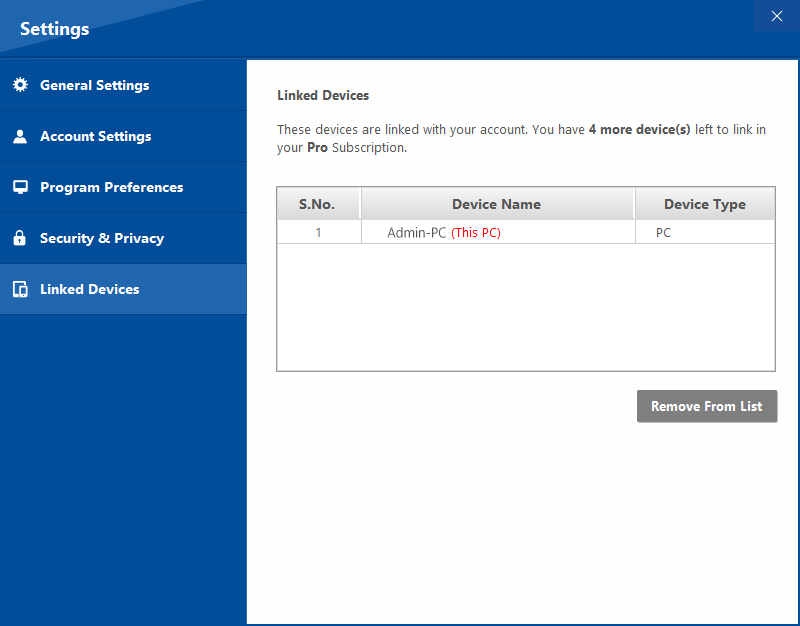
Folder Lock 10 linked devices settings screen for cross-device encrypted data access

The Mac edition of Folder Lock 10 first appeared in March 2025. Subsequent releases addressed password-change problems, dark-mode presentation, login issues tied to Apple in-app purchases, sharing and file-deletion bugs, account deletion, accessibility refinements, and interface updates. On April 2, 2026, the vendor announced that future Mac distribution would move to the Mac App Store.

Already using the older web-installed Mac build?

The supplied release notes advise moving to the App Store edition rather than maintaining two copies of the application. Before changing installations, make a separate backup of important encrypted data and confirm that you know your account and recovery credentials.

Fix common problems

Common Mistakes When Doing How to Hide a Folder on Mac

Folder still appearsFinder has not refreshed or hidden items are currently shown.Press Command + Shift + . to check hidden-item mode, or relaunch Finder.
Folder seems missingThe hidden flag worked and Finder is suppressing it.Use Command + Shift + . or run chflags nohidden on the known path.
Command says “No such file”The path contains spaces or was typed incorrectly.Drag the folder into Terminal to insert the path automatically, or quote the full path.
Dot-folder broke an appThe application expects the original folder name.Rename the folder back and use the hidden flag or an encrypted copy instead.
Encrypted image will not openPassword, image corruption, or storage problems may be involved.Stop changing the original data. Work from a backup and use Disk Utility First Aid if the storage device itself has errors.
Forgot a folder-locking passwordTrying random bypass steps can damage access or violate ownership boundaries.Use the product’s official recovery flow, saved recovery material, license/account records, or vendor support. Do not use cracking or credential-bypass instructions.
FileVault recovery concernRecovery material was not recorded safely.Review Apple’s FileVault recovery options before a lockout occurs and store recovery information separately.
Moving from the old Folder Lock Mac installerThe vendor moved future Mac updates to the App Store in April 2026.Back up important locker data, confirm account access, remove the older web-installed app as directed by the release notes, then install the App Store build. Avoid keeping duplicate app installations.
Cloud locker has not finished syncingEncrypted cloud workflows depend on both the locker app and the underlying cloud service.Do not delete the local working copy until the protected version is visible and usable on another authorized device. Test with non-critical files first.
Verify your result

How to Verify Your Folder is Properly Locked

Verification should match the method. A hidden folder is verified by checking that it disappears in normal Finder view and reappears when hidden files are shown. An encrypted container is verified by closing or ejecting it, then confirming the underlying files cannot be read until the correct credentials are supplied.

Is How to Hide a Folder on Mac Enough to Keep Files Safe?

No. Hiding reduces visibility, not access. If the contents would cause harm if exposed, add encryption and a recovery plan.

User feedback

What the supplied review material suggests

Editorial customer feedback illustration for evaluating file security software experiences

The review material supplied for this build includes product-level comments credited to Capterra and vendor-hosted feedback. It spans different users and editions, so we treat the themes as directional rather than as Mac-only performance evidence.

What do long-term users appear to value?
Reliability and the reassurance of keeping private files behind an extra security layer show up repeatedly. Several reviewers describe using the product over extended periods rather than only for a short test.
Is the free tier useful on its own?
The feedback suggests that some users find the free feature set sufficient for lighter personal use. The plan table explains the practical ceiling: each listed locker is limited to 1 GB and synchronization is capped at two devices.
Does the product fit professional privacy needs?
Reviewers from legal, administrative, finance, and research roles describe using Folder Lock around confidential work. That supports the use case, but organizations should still apply account controls, backups, retention rules, and device encryption rather than treating one app as the entire security program.
Are there criticisms in the feedback?
Yes. One caution in the supplied material is that cloud and transfer workflows may not feel as polished as the core local-protection experience. That is a reason to test synchronization with non-critical data before moving an important archive.
Decision guide

Which method or tool is right for you?

Visual clutter onlyTerminal hidden flagFast, reversible, free. No need for an app.
One private archiveDisk Utility encrypted imageStrong built-in option with no additional software.
Lost or stolen MacFileVaultProtects the startup disk before login. Pair with strong account security.
Ongoing encrypted locker workflowFolder Lock for MacUseful when you want a guided Desktop and cloud locker experience.
Advanced cross-platform containerVeraCryptPowerful but more technical. Prefer it only if you understand volume workflows and recovery.
Common questions

Frequently asked questions

How to hide a folder on Mac?

Open Terminal, type chflags hidden followed by a space, drag the folder into Terminal to insert its path, then press Return. This hides the folder from normal Finder view but does not encrypt it.

How to make a folder hidden on Mac?

Use the hidden flag with Terminal or rename a technical folder with a leading period. The hidden flag is usually safer because it does not change the folder name.

How to use Terminal to hide a folder on Mac?

Run chflags hidden "/full/path/to/folder". Quotation marks are useful when the path contains spaces.

How to find hidden folders on Mac?

In Finder, press Command + Shift + . to toggle hidden items. You can also navigate directly to a known path using Finder’s Go to Folder command.

How to hide files on Mac desktop?

Group them into one folder and hide that folder. For sensitive files, use encryption instead of hiding each file separately.

How to show hidden files on Mac?

Press Command + Shift + . in Finder. Press the same shortcut again to return to the normal view.

What is the difference between hiding and locking a folder on Mac?

Hiding changes visibility. Locking can refer to permissions, an app-controlled vault, or encryption. For confidentiality, encryption is the important distinction.

How to hide an app on Mac?

Hiding an application window is different from hiding an app bundle. If you only want less visual clutter, remove the app from the Dock. Do not rename or relocate app bundles unless you understand the consequences for updates and permissions.

How to create an invisible folder on Mac?

Use the Finder hidden flag rather than tricks involving transparent icons or blank names. It is easier to reverse and less likely to create confusing filenames.

How to hide downloads on Mac?

Move sensitive downloads to an appropriate protected location instead of hiding the Downloads folder itself. Apps and browsers expect that standard folder to exist.

What is the difference between locking and hiding a folder?

Hiding is a visibility preference. A meaningful lock should require authorization or encryption before the data can be read.

Can folder lock software be bypassed?

No protection should be treated as impossible to attack. Use supported software, keep macOS updated, enable FileVault when appropriate, maintain backups, and use strong unique credentials. We do not provide bypass or cracking instructions.

Does locking a folder affect its contents?

A well-designed locker should preserve file contents, but it can change where and how you access them. Always verify a protected copy before deleting the original.

Is folder locking the same as folder encryption?

No. “Locking” is a broad label. Encryption specifically transforms readable data so the correct key is needed to decrypt it.

How do I know if a folder is truly locked and not just hidden?

Turn on hidden-file viewing. If you can immediately browse the files, the folder was only hidden. For an encrypted container, close or eject it and verify that the contents cannot be read without the required credentials.

Can i hide a folder on mac?

Yes. Use chflags hidden for a reversible Finder visibility change. Use encryption when privacy matters beyond casual viewing.

Can you hide folders on mac desktop?

Yes. Hiding a single containing folder is usually simpler than hiding many Desktop files individually.

Does Folder Lock for Mac support cloud storage?

Yes. The supplied product material lists encrypted locker workflows for Dropbox, Google Drive, and OneDrive in addition to a local Desktop locker. Treat synchronization as a workflow to test rather than assuming a cloud upload has completed safely.

What is included in Folder Lock Free on Mac?

The supplied comparison gives the free tier 1 GB in each listed locker, support for two synchronized devices, and access to the desktop and mobile app family. Sharing and the Secrets area are reserved for Pro.

What does Folder Lock Pro cost?

The supplied NewSoftwares material shows $39.95 for Pro but does not specify the billing interval in the text provided for this build. Check the Mac App Store purchase screen for the current regional terms before buying.

Why did Folder Lock for Mac move to the App Store?

The April 2026 release notes state that future Mac updates would be delivered through the Mac App Store. Users of the older web-installed build were directed to switch rather than keep duplicate installations.

How to Hide Folder in Macbook Air?

The same macOS methods apply on a MacBook Air: hidden flag for visibility, Disk Utility for a password-protected image, and FileVault for whole-device protection.

More on this topic

In-Depth Answers for Mac Folder Privacy

How to Hide Folder macOS

The reliable built-in approach is the hidden flag. It changes Finder visibility while keeping the original name and location intact. That makes it a better general-purpose hiding method than renaming a folder with a leading period.

Remember that the folder is still present and can be revealed. If the data is private, move from hiding to encryption.

How to Hide Folder in Macbook Pro

MacBook Pro uses the same Finder and Terminal behavior as other Macs running the same macOS release. Use chflags hidden for visibility, Disk Utility for a protected image, and FileVault for startup-disk security.

The hardware model does not turn a hidden folder into an encrypted one. Your threat model should decide the method.

How to see hidden files on mac

Use Command + Shift + . in Finder. This is the fastest way to check whether a “missing” file is simply hidden. Use the same shortcut again to return to normal Finder visibility.

Take care around hidden system and application files. Their hidden status often prevents accidental edits.

How to hide a file on mac

The chflags hidden command works on files as well as folders. For many files, group them first so you have one reversible change to manage.

For individual confidential documents, encryption or the file format’s own password protection is more meaningful than hiding.

How to show hidden files permanently on Mac

Most people should use the Finder keyboard toggle only when necessary. Leaving hidden files visible all the time increases the chance of accidentally moving or deleting files that macOS or applications expect to remain untouched.

If hidden items are part of your daily technical workflow, document your setting and use backups before changing unfamiliar dot-files.

When to use folder locking vs full encryption

Choose folder-level encryption when only a selected set of files needs an additional boundary. Choose FileVault when the risk includes physical loss or theft of the Mac. Many privacy-conscious setups use both because they protect different failure points.

Hiding can still be useful for convenience, but it should sit below those controls rather than replace them.

Our verdict

The Bottom Line

Native Mac data vault illustration representing encrypted private file storage

For a folder that is merely cluttering your Mac Desktop, chflags hidden is the best first choice: it is free, quick, and reversible. For a folder containing information you would not want another user to read, hiding is not enough. Use an encrypted disk image or encrypted locker, and turn on FileVault when theft or loss is part of the risk.

Folder Lock for Mac is a better fit when you want the same encrypted-locker workflow across local storage and supported cloud services, or when the Pro sharing and multi-device features solve a real need. Disk Utility remains our preferred free choice for a one-off encrypted folder. Folder Lock adds convenience and synchronization, but it also introduces an account, a separate locker model, plan limits, and a feature gap versus the Windows edition.